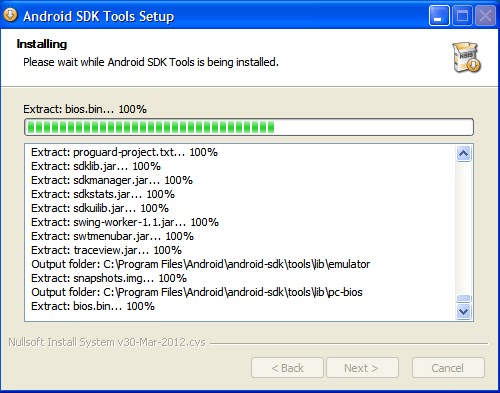
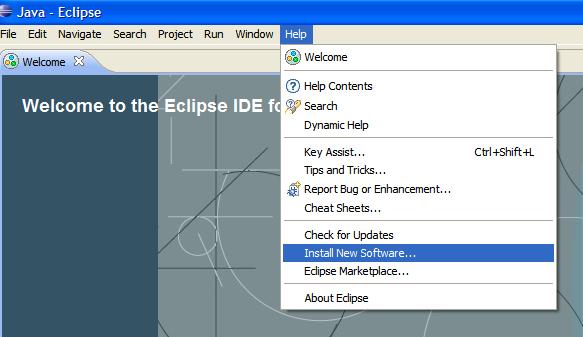
In order to continue this tutorial, you should have installed necessary development tools and IDE for Android application development. If not please go through with my previous
blog!
Open the Eclipes IDE and click on File -> New->Other
Then you will find a wizard as give in Figure 1, and select Android Project.
Figure 1
Figure 2
Once you typed the project name you may encounter an error saying that “An SDK Target must be specified.” It means that you have not set the respective android SDK for the tool.
In order to set the path, go to window -> preference. You will find a wizard as shown in figure 3,
Figure 3
Select android first and give the SDK location by selecting “Browse...” button. Once you select the correct path press “Apply” button. The “Figure 4” is illustrating the result of previous query.
Figure 4
Wheew…. We are configured the development tool!
Now we will start to create our first android application!!... Better we call it as Testing application ;)
As mention previously create a new android project and give the values for respective fields and click on finish.
Figure 5
Now go to package explorer and Right click on the Sample project.
Figure 6
Go to Run As -> and clicks on Android Application!! WOW are we done with our application work mmmm is that possible to see our applications output???!
Answer is No…. you will get an error! As mentioned in figure 7!!!!
Figure 7
Well it is ok! ;) Since we haven’t configured our “android virtual device” emulator for test our system we got this error.
In order to tackle this, click on “Yes” Button.
Then you will get AVD Manger, where you should click “New” button in order to configure new AVD!

Figure 8
Figure 9
Click "start" on AVD Manager!
WOW you got the new anroid Emulator

Figure 10
Wait for some time until it load.... it may take 1 to 5 minutes depend on machine performance.

Figure 11
Before you get into programming… have some nice time with the AVD and experiment it!
Figure 12
Wohhwww whooww it’s awesome! It is your program in mobile!! Well done.
If you have any problem in this experiment and configuration let me know I’ll try to help you out!